

A WordPress Update Broke My Site: How to Fix It Safely


Updates to your WordPress site become available all the time, whether for core files, themes, or plugins. Since many updates build on each other, the longer you wait to apply them, the greater the risk of compatibility issues or unexpected breakage.
While many of WordPress’s core updates happen automatically, major release updates, along with updates to your theme and plugins, do not. People are often nervous to push that update button because there’s a chance it could result in unexpected downtime. However, outdated themes, plugins, and core files leave your site more vulnerable to security risks and attacks, so keeping WordPress up to date supports both security and long-term stability. But what should you do if a WordPress update breaks your site and it suddenly goes down?
Your first reaction is likely panic, especially if the update impacted a live site. (This is why testing updates on a staging environment first is recommended.) In most cases, update issues are caused by plugin conflicts, theme conflicts, or custom code that no longer works with the new version. This article explores the most common ways an update can break your site and provides step-by-step instructions to get your site back online quickly.
*Just make sure you have the correct WordPress admin permissions to navigate and troubleshoot the following scenarios.
The WordPress update process
When the WordPress core gets updated, WordPress goes into what we call “Maintenance Mode.” Instead of seeing your website, a visitor will see a message stating that the site is down briefly for maintenance and to check back in a moment. (By the way, this screen is customizable.) This is to make sure nothing looks broken on your site while the update is happening.
During this time, WordPress temporarily replaces core files, themes, or WordPress plugins with the new versions and runs the update in the background. Once the update finishes successfully, WordPress exits Maintenance Mode and your site loads normally again, along with a notification confirming success.
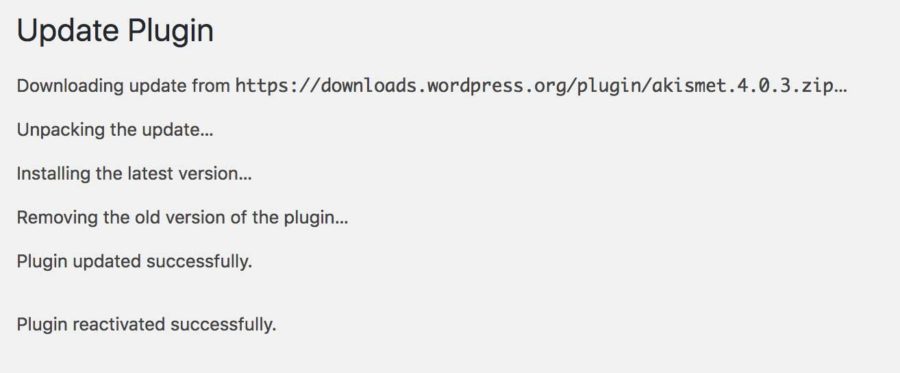
The success message of a Plugin update
What if the site is stuck in Maintenance Mode?
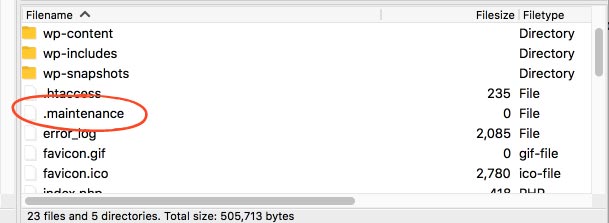
It is possible for something to go wrong with the update, causing your site to get stuck in Maintenance Mode. If it stalls, the most common issue has to do with a file (called .maintenance) that WordPress uses to put your site into Maintenance Mode. If it fails to be deleted afterward, your site will be stuck with that message.
To get your site out of Maintenance Mode, you just need to manually delete that .maintenance file. But in order to get to that file, you need to have access to your site's files via either your hosting account or FTP. So it is important to always have those URLs and logins on hand in case you need them in a pinch. It’s also useful to familiarize yourself with an FTP program – like the free FileZilla – so you can quickly take care of little issues like this when they arise and aren’t scrambling to find passwords. Once you have logged in via FTP, go to the site’s root (usually in a folder called public_html) and delete the file.
If you can’t do it yourself, your host should be able to delete it for you, although sometimes for a fee. It’s a good idea to get familiar with your host’s maintenance and support policies, as some may charge pricey fees to fix your site. You may find that having a developer who can be on-call in times of emergency is a better option.
After getting your site out of Maintenance Mode, it’s always good practice to check your site. The update may have disabled your theme or plugin if it broke during the update.
How to fix a broken WordPress site post-update
Sometimes updating core files, your themes, or plugins can cause other things to break on your site, leaving you wondering why your WordPress site is suddenly not working. When this happens, you will need to find the issue and fix it. In the meantime, you can roll back to a previous version of the plugin or theme (or even the WordPress core version) while you work out a fix.
The easiest way to do this is to simply use a backup of your site and revert to the most recent version. This is not a permanent fix; you will still have to run the updates at some point, and likely soon if there are security patches involved. Fixes might involve changing some code in your theme, adjusting plugin settings, or replacing a plugin entirely. To update your site without losing content, always create a full backup, avoid editing core files directly, and test updates in a staging site before applying them to your live site or admin dashboard.
Aside from backups, you can manually replace the files via FTP or use the WP Rollback plugin, which gives you the ability to roll back to previous versions of a plugin or theme from the dashboard.
If problems persist, enabling debug mode in the wp-config.php file can help reveal underlying PHP errors. Turning on WP_DEBUG logs detailed error messages that can point to plugin conflicts, theme conflicts, or custom code causing update issues.
When the culprit is a core update
To be frank, a core update is almost never the reason for your site breaking. WordPress puts a lot of effort into maintaining backward compatibility, meaning it still supports deprecated functions as best it can for those who are running older versions.
WordPress Core updates are carefully vetted. If your site breaks after a Core update, it is most likely a plugin or theme that has not been updated to support the latest version. All WordPress developers who have contributed either themes or plugins to the online repository get a direct email for every core update, outlining the things that are going to change. This gives the developers time to update their plugin or theme to support this version, but not all are vigilant about this.
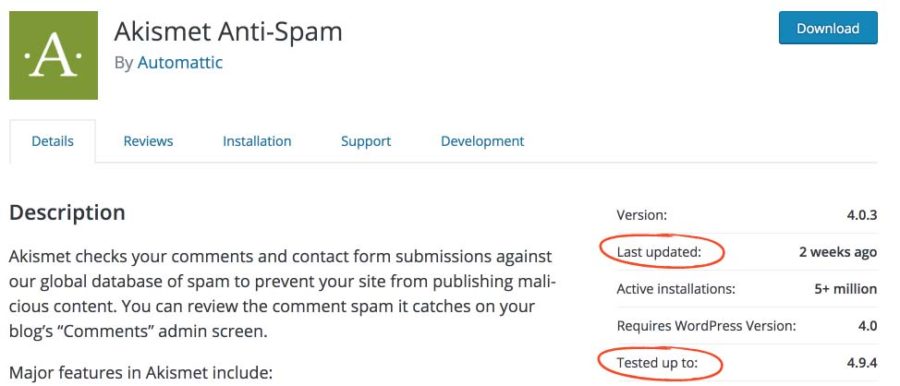
You can see when the plugin was last updated and which version it has been tested with in the Plugin Repo on WordPress.com.
But it’s not impossible for a core update to go wrong! When it does, the WordPress team will push out another update that fixes things as soon as possible. However, it may require you to manually update WordPress. The Codex has information on how you can run a manual WordPress update.
When the culprit is a plugin
Sometimes, you run a bunch of updates at one time and aren’t sure which one broke your site. You can start by deactivating all your plugins and reactivating them one by one to check which one is causing the broken site.
Once you find the plugin responsible for the break, you have a few options:
Check online to see if anyone else has had the problem. If so, there may be a known fix you can implement.
Contact the plugin developer about the issue. They will probably like to know when there is a conflict. Tell them which version of WordPress you are running, which theme, and all the plugins and versions you have running. This can help to narrow down the issue. They may have further instructions for you, like checking your server error logs to give them more information.
Disable the plugin. If it’s not a critical plugin, you can disable and delete it or replace it with another plugin with similar functionality.
Revert to a previous version of the plugin. While you are looking for a fix, you can revert to a previous stable version of the plugin.
Hire a developer. A knowledgeable developer may be able to fix it. It’s important to note, however, that you should almost never edit another plugin’s core files. When plugins are updated, all the files will be overwritten by the new version, including your changes. But I say almost never because sometimes the developer will work out a quick fix for you to apply to the plugin yourself while they work on your site’s files to release a new version.
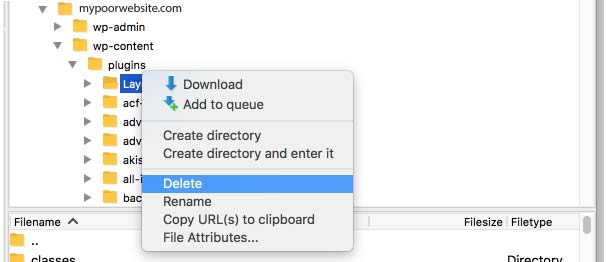
Delete the offending plugin to restore access to your site.
When the culprit is your theme
Theme updates can be responsible for a site break. Did you use a child theme to make code changes to your theme? If you made changes directly to your commercial or free theme, running an update will overwrite all of these changes. Never make code updates directly to your theme, unless it is a custom theme and you know what you are doing. Check out the Codex for more information on Child Themes.
It may also be that your theme wasn’t prepared for the WordPress update. This process is similar to the plugin troubleshooting process.
Disabling a theme
If the theme is the issue, go into your Themes Admin and activate the default WordPress theme. These are typically named by year. For example, in 2017, the default theme was called twenty-seventeen.
Activating the default theme will let you know if it’s a theme issue or not. If the problem still persists after activating the default theme, then it is likely a plugin issue. If it is a theme issue, then check for updates with the theme creator, or choose another theme that supports the current WordPress version. It is also useful to contact Support and notify them of the issue. If the theme was from the WordPress Repo, leave a post in the forums. If it was a commercial theme, contact their support directly to report it.
When your host is to blame
If you see a 500 Internal Server Error on your site, this means you’ve got a hosting issue. Your hosting may be down, or you have run out of memory on your server. Contact your hosting support to solve this problem.
What is the White Screen of Death?
The White Screen of Death is how we WordPressers fondly refer to a site breaking so badly that all you see is a white screen. No website, no code, nothing: just white. If this happens, remember not to panic. You can troubleshoot this by deactivating our plugins and themes, which will reset everything and restore your access to the Admin for troubleshooting. Use the information above to first disable your Plugins directory, and see if your site comes back online.
Next, change to a default WordPress theme. If the site is still white screening, you may have a corrupt version of WordPress. The best thing to do is a manual WordPress update and replace all your core files with a fresh install. Reinstalling WordPress core files does not remove your posts, pages, or media as long as you do not delete the wp-content folder or database. This approach often restores access to the admin dashboard without losing data.
Information to always have on hand
It’s easy to lose track of key information if your site has never broken before. But the first time it does, you’ll want to have as much information on hand as possible so you, your developer, or your host can troubleshoot. Below is a list of items you will need:
Your domain registrar
Your hosting login
Access to your database and files via cPanel or FTP
An FTP client like Filezilla
Your host’s Website Support policy
The number of a good developer who will work with you in emergencies!
Of course, in an ideal situation, you will do all your updates in a staging environment, so you can catch and fix any potential issues before you update your live site. Testing changes first, keeping regular backups using a service like SiteLock, and using reliable WordPress hosting can significantly reduce the risk of future update-related problems. Learn more about staging sites for WordPress updates.
Keeping your WordPress site updated series:
-
- March 5: A Process for Managing Updates