

What Is a 502 Bad Gateway Error & How to Fix It?


Website reliability is a paramount priority for business owners, and avoiding common errors that can disrupt website functionality is a key place to start. 500 errors, in particular, can often render a website inoperable, resulting in consequences such as poor user experience, damage to search engine optimization (SEO) rankings, and a lot more.
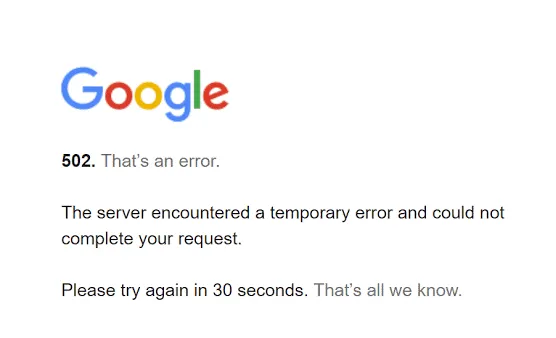
If you want your website pages to always load and function properly, preventing 500 errors (and 502 Bad Gateway errors in particular) is essential. To help you get started, we’ll cover everything you need to know about 502 errors, including what they are, what causes them, and how they can be fixed and prevented.
What does 502 Bad Gateway mean?
A 502 Bad Gateway is an HTTP status code error, and it means that one server did not receive a valid response from another server it relies on to load a webpage.
For website visitors, this usually means the site’s page failed to load due to a server-side communication issue and is not caused by their browser, device, or internet connection.
For website owners and admins, a 502 error indicates a breakdown in communication between a gateway server (such as Nginx, a load balancer, or CDN) and the origin server hosting the website’s content.
In simple terms, the gateway or proxy server attempted to pass a request and received an invalid response, no response, or a timeout instead from an upstream server. This failure often happens during traffic spikes, server overload, misconfigured HTTP headers, DNS problems, or conflicts involving firewalls, proxies, or hosting services.
Because 502 errors are server-side error codes, refreshing the page may resolve temporary issues, but persistent errors usually require deeper troubleshooting by the site owner or administrator.
There are also many different variations of this error message; here are some of the ones you are likely to see if you experience a 502 Bad Gateway error:
“502 Bad Gateway”
“Error 502”
“HTTP Error 502 – Bad Gateway”
“502 Service Temporarily Overloaded”
“502 Proxy Error”
A blank white screen
“502 Server Error”
“HTTP 502”
“Temporary Error (502)”
“502. That’s an error”
“502 bad gateway Cloudflare”
“Bad Gateway”
What causes 502 Bad Gateway errors?
A 502 Bad Gateway error can be triggered by several different issues, but some causes are significantly more common than others.
Most common root causes
These account for the majority of 502 errors seen on production websites:
Server overload or traffic spikes, where the origin server cannot keep up with incoming requests.
Gateway timeouts, where the gateway server waits too long for a response from the backend server.
Misconfigured CDN, proxy, or firewall rules that block valid traffic.
Backend server issues, including crashed services, PHP errors, or exhausted server resources.
DNS issues, such as outdated domain names records pointing to the wrong IP address.
Less common but possible causes
While less frequent, these edge cases can also result in 502 errors:
Conflicts caused by custom JavaScript or poorly written plugins.
Network failures between servers or data centers.
Web hosting environment misconfigurations.
Router or internal network issues within the hosting infrastructure.
Identifying whether the error is caused by a temporary overload or a persistent configuration problem is a critical first step in resolving it.
Troubleshooting 502 errors for website visitors
When you encounter a 502 Bad Gateway error as a website visitor, the issue is typically related to a server-side communication problem. While visitors cannot fix the underlying cause, there are a few simple steps you can take to rule out temporary or local issues.
Reload the page
You should always try the simplest solution first when attempting to troubleshoot any issue, and simply reloading the web page will often fix 502 errors. If the server issue causing the error is due to server overload at the time of the request, the issue will typically be resolved by the time you reload the page.
Clear browser cache & cookies
A lot of times, clearing your browser cache and cookies will eliminate any client-side issues that are causing a 502 error. The reason is that cached data can sometimes become corrupted or outdated, and this can lead to errors when loading web pages. By clearing your browser cache, you can ensure that you’re loading the most up-to-date version of the website.
Try a different browser or device
Open the site in another browser, such as switching from Google Chrome to Microsoft Edge or Mozilla Firefox, or test it on a different device. If the error disappears, the problem may be browser-specific rather than site-wide.
Use incognito mode
Loading the page in incognito or private browsing mode temporarily disables extensions and cached data, helping rule out local conflicts.
Switch networks & try again later
If possible, switch networks or retry after a few minutes. Many 502 errors resolve once server load stabilizes, and retrying later is often successful.
If the error persists after these steps, the issue is likely on the website’s server and must be resolved by the site owner or administrator.
How to fix 502 errors for website owners
For website owners and administrators, a 502 Bad Gateway error signals a breakdown between a gateway server and the origin server. Resolving it typically requires server-level investigation and configuration changes.
Check server & application logs
Start by reviewing web server, application, and error logs to identify failed requests, timeout messages, or upstream connection issues. Server logs often reveal problems tied to PHP errors, crashed services, or misconfigured HTTP headers.
Verify DNS & domain configuration
Ensure your domain names are pointing to the correct IP address and that DNS records are current. Outdated or incorrect DNS settings can prevent gateways from reaching the origin server.
Review CDN & firewall settings
If you're using a Content Delivery Network (CDN) or firewall, try checking these services to make sure there are no misconfigurations in their settings that are causing the 502 error. Make sure there aren’t any rules or settings that are causing conflicts or blocking access to your website. You can also try temporarily disabling your CDN or firewall to confirm whether or not these services are actually causing the error.
Resolve server-side performance issues
If the origin server is overloaded, optimize resource usage by enabling caching, addressing inefficient database queries, or scaling server capacity through your web hosting provider. Load testing can help identify bottlenecks before they cause failures.
Audit plugins, extensions, & custom code
Outdated or incompatible plugins, extensions, or JavaScript integrations can interfere with server responses. Update all components and disable plugins one at a time to isolate conflicts.
Fixing a 502 error often requires a combination of debugging, configuration updates, and performance optimization to restore reliable communication between servers.
How to prevent 502 errors
To help prevent your users from encountering these errors, regular website maintenance and updates are essential.
Along with keeping your website and all of its plugins and extensions properly updated and maintained, there are several other methods you can use to prevent 502 errors. The first of these methods is to implement a Web Application Firewall (WAF) to protect your website from malicious attacks and vulnerabilities. A WAF monitors incoming traffic and filters out potentially harmful requests, preventing them from reaching your web server and causing issues such as 502 errors.
A Content Delivery Network (CDN) is another service that can help prevent 502 errors. With a CDN, content is distributed across multiple servers located in different geographic regions. This reduces latency and ensures faster page load times for users worldwide while also helping prevent any single server from becoming overloaded.
Lastly, regularly patching vulnerabilities in your website's content management system (CMS) and plugins is vital for maintaining security and preventing errors, as these vulnerabilities can be exploited by hackers to compromise your website and trigger 502 errors. Thankfully, an automated vulnerability patching service such as the one offered by SiteLock can be used to keep your website updated and patched around the clock.
Need help maintaining your website?
Preventing 502 errors is key to optimizing your website’s performance and ensuring a positive user experience. By learning how to troubleshoot and fix 502 errors, you can resolve them promptly, while services such as those offered by SiteLock can help you prevent 502 errors from happening in the first place.
SiteLock works to monitor your website in real time, bolstering security and optimizing performance via solutions such as a CDN, a WAF, automated vulnerability patching, and more.
To learn more about these industry-leading services, be sure to check out our website security plan options. Or, feel free to contact us today to see how SiteLock can help you maintain and optimize your website!
Frequently asked questions
Does a 502 Bad Gateway error mean I’m blocked?
No. A 502 error typically indicates a server communication problem, not that your IP or browser is blocked.
Can a firewall cause a 502 error?
Yes. Misconfigured firewall or WAF rules can block legitimate traffic between the gateway and the origin server, resulting in a 502 error.
Is a 502 Bad Gateway error a hack?
Not usually. Most 502 errors are caused by performance or configuration issues, although attacks that overload servers can increase their likelihood.
How long does it take to fix a 502 error?
Some 502 errors resolve within minutes, while others may take hours, depending on whether server, DNS, or configuration changes are needed.
Is it possible to prevent 502 errors completely?
No, but proper server monitoring, security controls, and maintenance can greatly reduce how often they occur and how disruptive they are.